The Ricoh printer/copier is now old and not supported software-wise by Ricoh but it is working well and is very reliable. In order to use it as a printer it must be connected to a laptop via a USB cable. It also needs a piece of software called a driver installed on the laptop (RPCS (r33399en.exe version 7.91)). This is tricky as the required driver is no longer available from Ricoh. Should it need to be reinstalled on the current OfficePC or installed on another laptop then we do have a copy of the driver software stored in the documentation folder on our website from where it may be downloaded via an FTP program (see Appendix 2 of Markdown Websites.
The RPCS driver is a Windows 7 piece of software. There is no such driver for Windows 8, 10 or 11. Being a Windows 7 driver it should not work on a Windows 10 machine. However, it does install and works OK with a few caveats:
Download the driver, “Ricoh MP C2030 RPCS driver (r33393en).exe”, via FTP from the folder
https://docs.martinway.org.uk/documentation/RicohRPCS to the Downloads directory.
Using File Explorer, locate the file in the Downloads folder
Double left-click on its filename
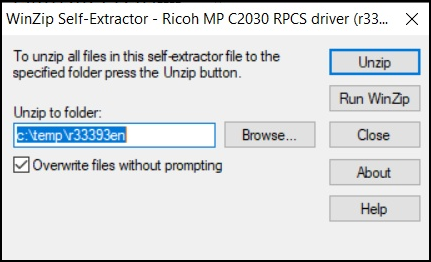
The Winzip Extractor screen should pop up
Make a note of the name in the “Unzip to folder” box e.g. c:/temp/r33399en
Left-click [Unzip] button
On the resulting “Winzip Self Extractor” screen
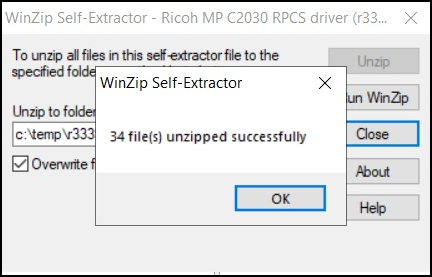
Left-click [OK] and left-click [Close] on the next screen
Do not connect the printer to the laptop at this stage
If you do then Windows will try to install a driver of its own and we don’t want that.
Left-click on [Start] button (Taskbar, bottom left)
Select “Settings” (cogwheel, rose, whatever)
Then “Devices” followed by “Printers and Scanners”
The following screen should result
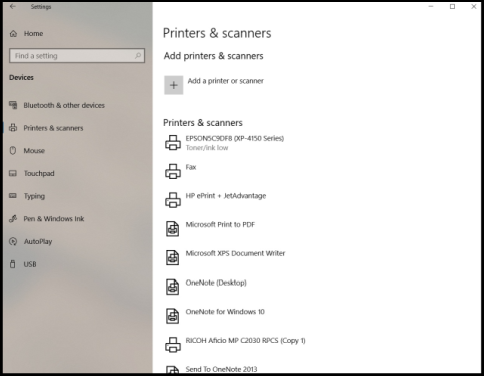
Left-click “Add a printer or scanner”
The system will then initiate a search for the device.
It wont find it so left-click on “The printer that I want isn’t listed”
The following screen should now pop up:
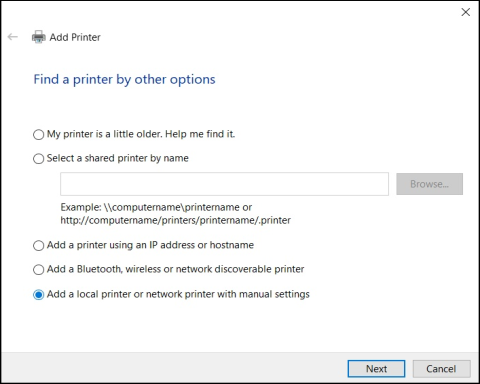
Check “Add a local or network printer with manual settings”
Left-click [Next] resulting in:
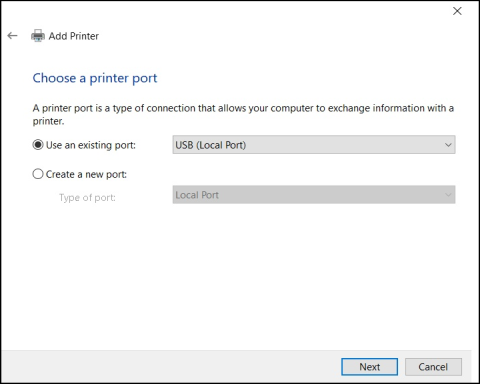
Check “Use an existing port and scroll down the box opposite and select”USB (Local Port”
Left-click [Next] resulting in
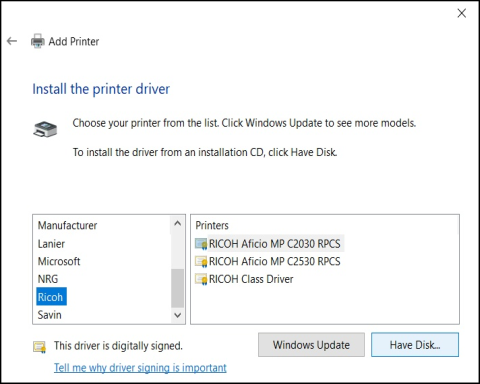
Scroll down “Manufacturer” list and select “Ricoh”
Do NOT select a printer listed on right but choose and left-click [Have Disk]
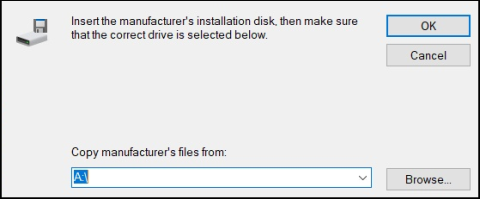
On the sreen above, left-click [Browse]
Navigate to the folder containing the files unzipped in Stage 1
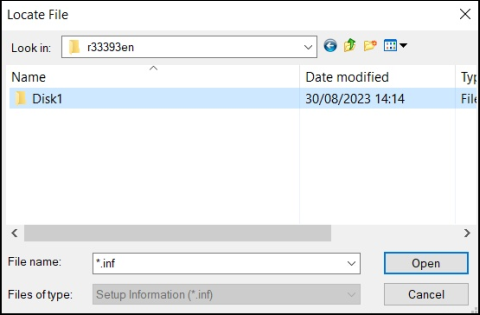
The next screen should look similar to the following
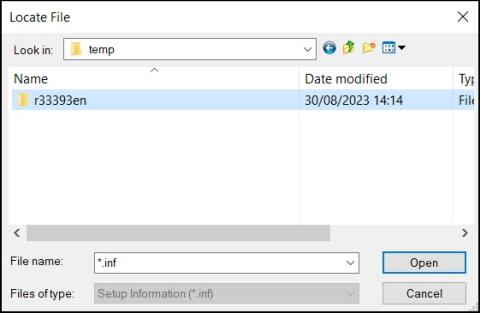
Highlight r33393en and left-click [Open] to bring up the following screen
Highlight Disk1 and left-click [Open] to bring up the following screen
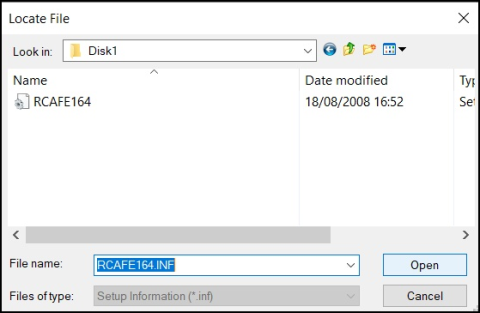
RCAFE164 should be highlighted;
Left-click [Open] to bring up the next screen
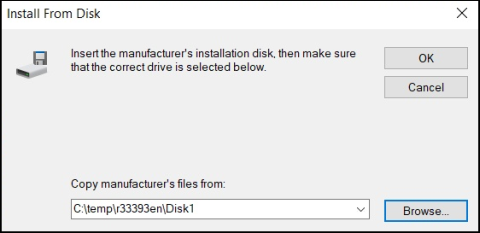
Left-click [OK]
The next screen (below) should bring up a list of printers
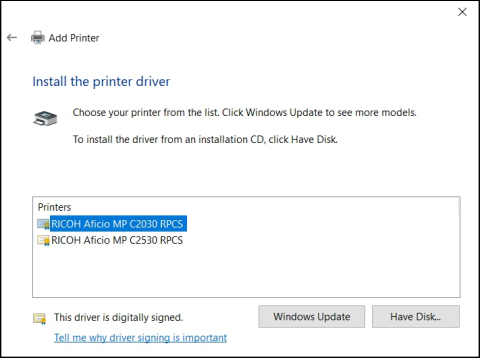
Select the first “Ricoh printer” and left-click [Have Disk]
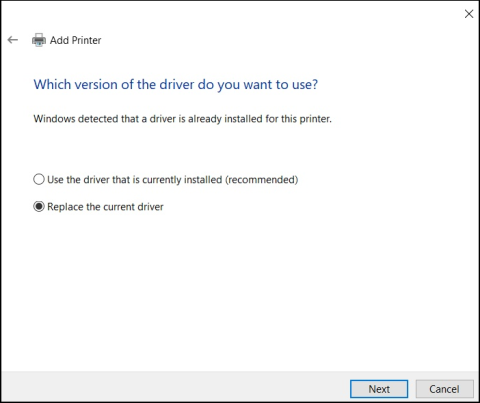
The next screen may or may not be displayed.
If it is it means that the driver has been installed previously
So choose “Replace the current driver” and left-click [Next]
The driver should now install.
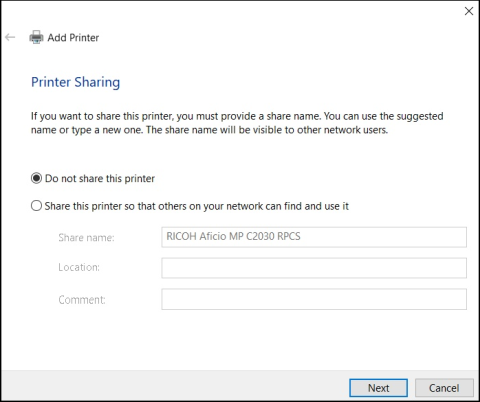
Once installed the next screen asks if the printer is to be shared.
Select “Do not share this printer” and left-click [Next]
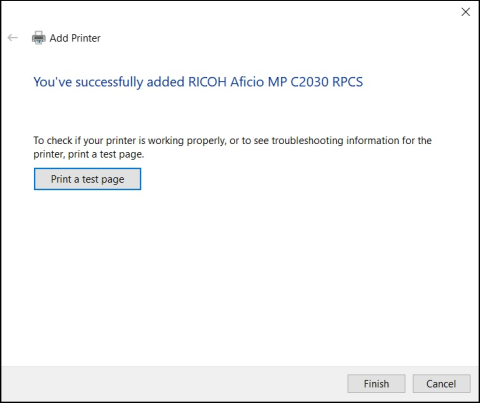
The next screen invites you to print a test page.
Don’t bother as it doesn’t work and throws up an error.
Just left-click on [Finish]
Now connect the printer’s cable to a USB port on the laptop
You can now test the printer.
For some reason there will probably be at least two Ricoh entries listed in your applications printer list.
The second one will be suffixed “Copy1”.
If the driver has been installed before there may now be 4 with suffixes “Copy 2” and “Copy 3” added.
Please work your way through the various copies, starting with the latest - one of them should work.
You may even have to try a different USB port.
Apologies, but this is old software and I can’t be precise on what will happen in every case.