This document, the fifth and last in my series of documents, explains my rationale for moving away from traditional hand-coded websites to those generated from the plain text Markdown system. This document is written using the Typora Markdown editor. It is then exported to a PDF file, Markdown Websites.pdf, ready for viewing, printing and uploading to the Documentation sub-folder of the Martin Way website.
This note was originally written as a proposal to Christian CARE to convert their website from html to Markdown, a proposal, I am happy to say they accepted. A website is an Internet based series of linked pages or screens of related information with a navigation system which allows the viewer to easily move between them. It’s much like a book with a contents page at the front and sometimes an index at the back and there may also be cross references scattered throughout the book. So what should a website be trying to convey? The answer to my mind is the “presentation of information in an easily digestible way without the distraction of anything that is irrelevant.” This section attempts to convey some of the ways of producing and maintaining websites.
This is probably the original and only way to produce web sites at the start of the Internet revolution.
To produce printed material in the days before computers, authors and journalists would submit their typed or handwritten manuscripts to an editor who would go through the text and “mark up” the document where changes were required. Once corrected, the resulting document would then go to be typeset and readied for printing.
Things have moved on since those early days with automation and computers revolutionising the printing process. Documents and articles are still edited and corrected by marking up the changes. The difference being that instead of cryptic notes in the margins and crossing out by hand the editing is carried out on a computer screen and marked-up with a standard set of marks that a computer can understand. If a bold piece of text was called for, the editor would mark the document in the appropriate place on the screen with the mark for “bold”.
In Internet, terms there is a similar mark-up system or standard for
writing the code for websites. It is called HTML, which stands for
HyperText Markup Language. A bold piece of text in HTML
would be bracketed by … .
Thus <strong>This text should be bold</strong> would
result in This text should be bold.
Early websites were very basic in their design and the way they looked. So along came the wish to prettify them and so entered - CSS. This goes by the name of Cascading Style Sheets invented to add style and sophistication to the way that websites looked but is also another coding system to learn.
CSS is used in conjunction with HTML e.g. to make the above
emboldened text blue in colour the coder would rewrite the above HTML
code with added CSS style as:
<strong><span style="color:blue;">This text should now be bold and blue</span></strong>
resulting in This text should be bold and blue
The websites I designed in the past have been coded in HTML and CSS and I have enjoyed doing so as it appealed to the programmer in me and takes me back to when I started in computing over 50 years ago. My websites have always had form over beauty and are relatively simple sites. However, the code of those sites was still lengthy and complex. They would be a nightmare for anyone to take over their maintenance.
So I started to think that there must be a better way for users to design and maintain their own websites. Hence this paper.
As computers became more sophisticated, website design packages came along to take the complexity and sweat of hand coding websites. They, of course, brought their own complexities but the learning curve was less steep than that in learning HTML and CSS. They operate on the WYSIWYG principle i.e. “What you see is what you get”.
Put simply, you chose a template of how you might want your website to look and then added your own text and pictures to that template by typing the words and inserting the pictures where you wanted them to appear on the screen. This put the emphasis much more on content rather than code. More pages based on the same template were added and a navigation system set up to link one page to another.
When satisfied with the design, the package then produced the website by generating the HTML and CSS code, remembering that they are the languages that the Internet understands. The other main difference between coding a web page and using a package is the extra but necessary “baggage”, or to give it its correct name “Meta data”, that the coder has to write in order for the web page to be accepted by the Internet. The web design package generates the Meta data for the designer to whom it is transparent.
I’ve considered using these packages but my initial forays were not very successful - my fault not the packages. I just didn’t spend enough time learning them.
I am a person who likes to get back to basics and I felt that those packages took away control and produced websites that were over the top. I’m not keen on websites which are big on visuals and low on content, as many of them are. Don’t get me wrong, some very good websites are produced using these packages and, of course, photographic and catalogue sites depend on pictures to display their wares.
Having discarded website design packages from my mind and realising that hand coded pages in HTML and CSS would be difficult and time consuming to maintain for someone other than the original author, I ventured into the world of Markdown.
Presentation is important but the words are more so and writing web pages in Markdown puts the emphasis firmly in the content arena. It allows the author to initially concentrate on what they want to say before looking towards its presentation. In this way it is ideal where it is important to get a message over clearly without being obstructed by the irrelevant.
Markdown would not suit every website but for my purposes it is ideal. It also means that anyone taking over from me can maintain the website more easily without have to learn a design package or new languages as the Markdown syntax for marking-up pages is simple and easy to learn. It does have its limitations and it is not as flexible as hand coding or producing a web page visually by using a package. However, for me the benefits of easier maintenance outweigh those limitations especially for someone who is not an expert in the black art of HTML and CSS.
I have already converted both the Martin Way (MWMC) and Christian CARE (CCA) sites and released them live.
First off it is a misnomer. It is, in fact, a syntactical system for
marking up text by placing tokens next to the
text you want to mark-up. For example, to make a piece of text standout
as bold in Markdown you would simply write
**I want this to be bold**, i.e. surround the text by
double asterisks.
It also makes provision for the inclusion of pictures and a system for a navigation system for hopping between web pages and websites.
| Item | Mark up tokens | Comments |
|---|---|---|
~~Strikethrough~~ |
Two “tilde” characters at each end | |
| Italicised text | _Italic text here_ |
Two “underscores” (or “asterisks”) at each end |
| __________________ | --- |
Horizontal line (3 dashes) |
| # Heading style 1 | # Major heading |
} Up to 6 Heading styles by |
| ## Heading style 2 | ## Lesser heading |
} increasing the number of ## (“hash” signs) |
| Picture |  |
Caption is optional |
| Link to another page | [Page Name](ContactPage.html) |
Page Name is optional |
| Link to a web page | [Google](https://www.google.co.uk) |
Web name optional |
At the end of the day, the Internet only understands HTML and CSS. This is not quite true as there are a few other things that it understands like JavaScript (don’t ask) but even this has to be enveloped in HTML and CSS. So, any web page has to be written in or converted to those languages.
Again, writing the content of a web page in Markdown is not the end of the story. It too has to be converted to HTML/CSS to produce a website ready for uploading to an Internet Service Provider’s (ISP) servers for the whole world to see.
A wise choice of editor program or app will do the the conversion and add the Meta data previously mentioned so that the author doesn’t have to (see “Tools of the Trade” in section 3 below).
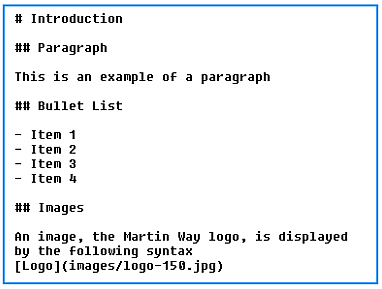
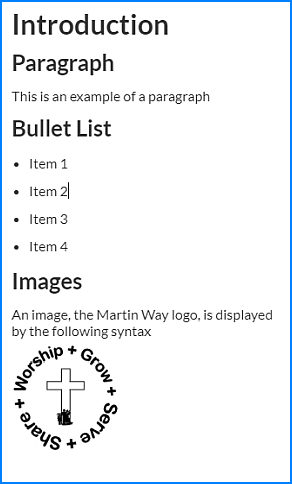
A comparison of a simple site written in HTML and again in Markdown can be seen in Appendix 1. Which one would you prefer to write and maintain remembering that these are two very simple examples?
It has long been my wish to try to demystify the process of creating websites, so having made the case for Markdown in Section 2, at least for the websites with which I am involved, I now take things forward and introduce more technical aspects of producing websites in Markdown. I’m not expecting the reader to understand all the technical bits at first reading but I hope it will be taken as a primer into the world of creating websites using Markdown.
The tools or programs that are needed to carry out the following functions:
My preferences are listed below, but there are others which may be preferred but first to emphasise that Markdown pages are just plain text documents that can be produced and edited by any text editing program. So, I do not advise using word processing programs such as Microsoft’s Word even though it has an option to save files in plain text. You would not be able to use any of Word’s formatting features as they would be lost when you saved the document in text format.
Any plain text editor can be used to produce Markdown documents and web pages, even Notepad, the one that comes built into Windows. An excellent free text editor with lots more functions, including a plug-in for viewing the result of the Markdown text is Notepad++ (https://notepad-plus-plus.org/downloads/) and is the one I would recommend for Windows. However, be aware that the preview may not be entirely accurate.
IrfanView is my go to program for cropping, resizing and enhancing images. It is an image viewer, editor, organiser and converter program which has image creation and painting capabilities. Incidentally, it can also play video and audio files and is available free from https://www.irfanview.com.
If you use a text editor to produce the web pages, then the resulting markdown file will need to be converted to the language that the Internet understands i.e. HTML. Step forward Pandoc, a free document converter (https://pandoc.org/installing.html). It is run as a batch file from within File Explorer. Each line of the batch file contains the parameters to convert one Markdown file to its HTML equivalent. Once converted it is the HTML file that is uploaded to the website. I have created such a batch file, makeMW.bat containing all the necessary lines to convert the current MWMC site’s Markdown files.
The first lines of that batch file read:
::ECHO OFF
:: This batch file converts all the .md files that make up the Test website to .html
:: -s = full html file, not just a code fragment
:: -f = flavour of Markdown to use
:: -t = type of conversion, to html5 on this case
:: -o = output file
:: -i = input file
:: -c = css file to use
::
pandoc -s -f markdown -t html5 -o "aboutus.html" -i "aboutus.md" -c "css/MWstyle.css" --metadata pagetitle="aboutus"
The lines starting :: are comment lines explaining the parameters contained in the Pandoc command lines.
FileZilla is one such program amongst many. It enables web pages on the local PC to be uploaded to or downloaded from an ISP’s servers. It is available at https://filezilla-project.org/. This program is available for windows, Apple Mac and Linux systems.
So how do you go about producing a web page in Markdown. The steps are as follows:
Setup a folder structure on your local computer specifically for the website
I called the top-level folder, MWwebsite, and created it on my D: drive
I then downloaded all the folders and files from the website to below that top-level folder using FileZilla, the ftp program described in Appendix 2.
This gave me all the website folders and files so that I could test changes locally before uploading the changed files back to the live website, again using the ftp program.
The folder structure might look something like this
It is a good idea to file like items in sub-folders so that in the above structure, the top-level folder contains all the source Markdown files, their html equivalent plus a batch file (makeMWwebsite.bat) which converts md files to html. The sub folders are:
| Sub folder | Contents |
|---|---|
| css | css definition file(s) |
| documentation | various files describing the administration of Martin Way including this one |
| downloads | general documents usually pdf’s |
| images | graphic files usually.jpg and .png files |
| kiosk | files for the Vestibule Display System namely the .ppt & movie files |
| newsletters | pdf copies of the newsletters arranged in yearly subfolders |
| notices | pdf copied of weekly Notices |
| videos | video files |
Note that when you enter a website address into a browser, such as https://martinway.org.uk, it expects to find a page named “index.html”. This is the “Home page” or “landing page” for the site and is the first page a visitor to your website will see. It acts as a window and an index to the rest of the site. It is possible to “land” on another page but that page would need to be explicitly stated in the browser address e.g. www.martinway.org.uk/contactus.html would take you straight to the Contacts page.
Think about what you want your web page to convey
Write down on paper or open your text editor and type the words you want to appear on that page.
Review those words and ask yourself do I need some headings and subheadings or pictures?
If so where on the page should they be?
Once you are happy with the page, now is the time to start adding Markdown tokens e.g.
 where “path” is the folder
containing the “picture.jpg” file[Page name](page.html)[Google](www.google.com)Convert your Markdown files to HTML files, using Pandoc or other means, ready for testing
Before you upload the website or website changes to the ISP test it out locally using your browser to open the index.html.
Are the pages looking as you wanted them to look? Don’t forget that they maybe viewed on computers, tablets and mobile phones. Generally speaking websites produced from converted Markdown pages are responsive i.e. they adapt to the width of the screen on which they are being displayed.
Do all the cross-referencing links work?
Apart from simpler design and maintenance, another reason why I’m advocating the Markdown method is that I am not getting any younger and would be delighted for someone to take over or share the role of webmaster. The CV19 virus has put this into perspective.
Anyone taking over will no doubt have their own way of working but with both websites resulting from Markdown text it will be obvious what is being conveyed rather than having to wade through and decode a lot of HTML and CSS to find out.
To look at a live website created by the Markdown approach visit
or the CCA website at
Although a relatively easy way of producing websites, Markdown is not as flexible as writing a website from scratch in HTML/CSS. However, it is possible to intermix them; writing the basic page in Markdown and then adding some simple HTML/CSS to tweak the output.
I have covered the small HTML and CSS “tweaks” that I have applied to Markdown text in Appendix 6 and the CSS Style Sheets used in this project in Appendix 7.
Simplifying the creation and maintenance of a website means that anyone who is computer literate, but not necessarily greatly so, should be able to carry out the task. However, what does “computer literate” mean in this context? To answer this, I’ve prepared a list of the skills which I feel are needed in Appendix 3.
The Internet has its own jargon and terminology so I have prepared a list of explanations in a separate document called “Internet Terminology” downloadable from the documentation section of our website.
I have converted both the Martin Way and Christian CARE websites which are now live having been released into the wild at martinway.org.uk and christiancaremerton.org.uk Enjoy!
The program I use to upload files to the ISP’s server is called FileZilla. The parameters needed would have been provided by your ISP when you signed up, in our case, Ionos.
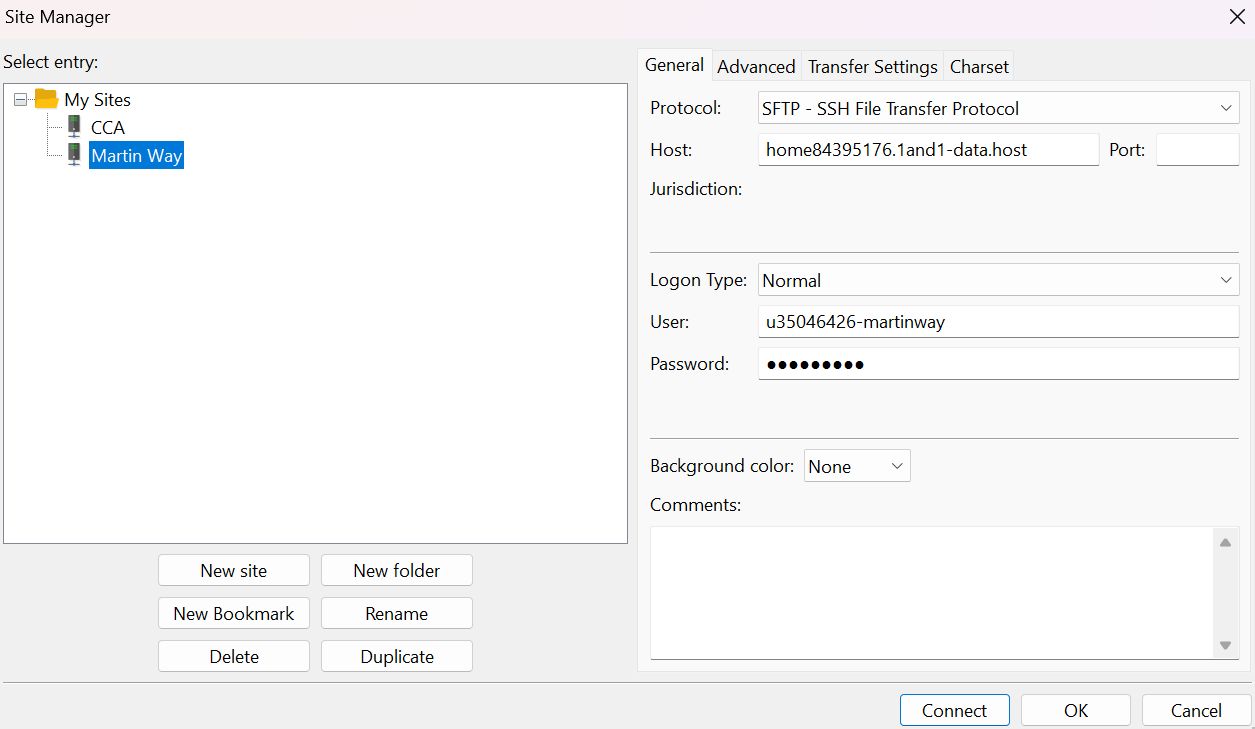
The example below uses parameters for both Christian CARE and Martin Way’s websites.
| Parameter | Christian Care | Martin Way |
|---|---|---|
| FTP Server | home84395176.1and1-data.host | home84395176.1and1-data.host |
| Port | 21 | 21 |
| Secure FTP | Yes | Yes |
| Username | u35046426-cca | u35046426-martinway |
| Password | kaphid6d6 | kaphid6d6 |
| Remote Directory | / | / |
| Local Directory | P:/Websites/CCAwebsite | P:/Websites/MWwebsite |
Note that the Local Directories shown above are for the test sites on my computer. You would enter the directory on your PC, where you have stored the local files that make up the website.
’’’ The following is to be rewitten for FileZilla
Open the Site Manager
Select the website to be set up and enter the parameters from the table above. The picture below shows those of the Martin Way site
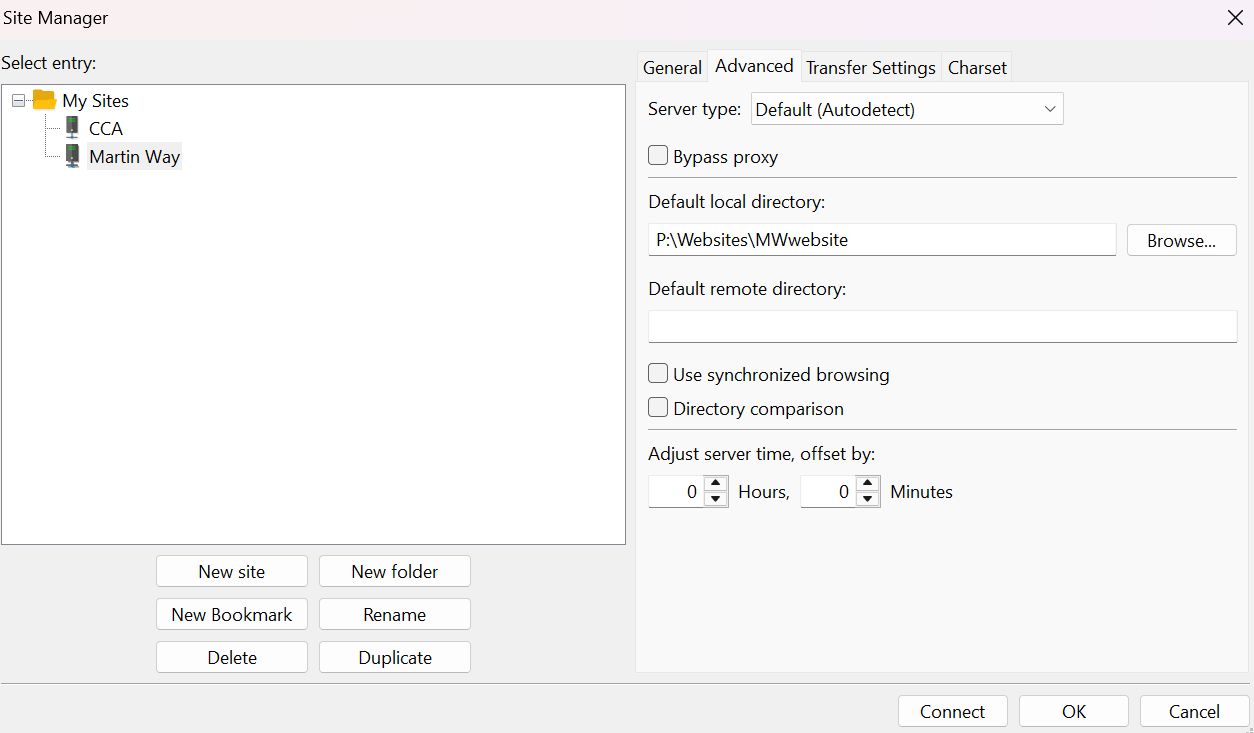
Click on the Advanced tab and enter the local path where the files are stored or use the “Browse” button to navigate to the directory where you have stored your web pages on your PC.
Then click “OK” to save the site.
Note that this set up only has to be completed once for each site.
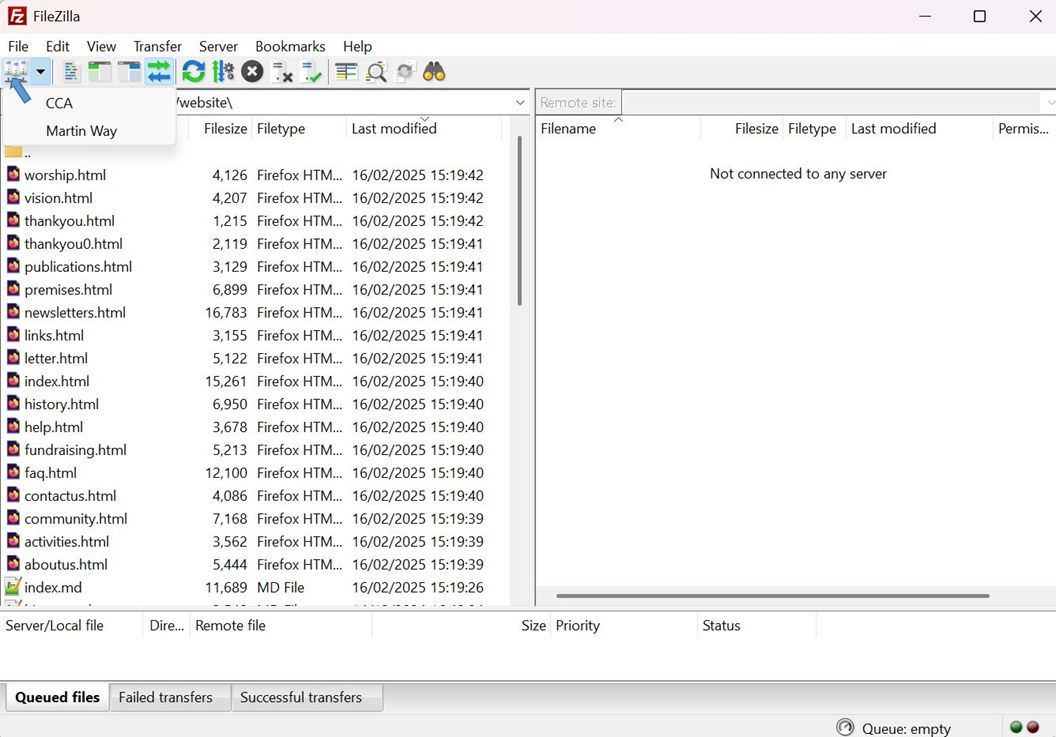
Click on down arrow next to the Site Manager icon on the toolbar
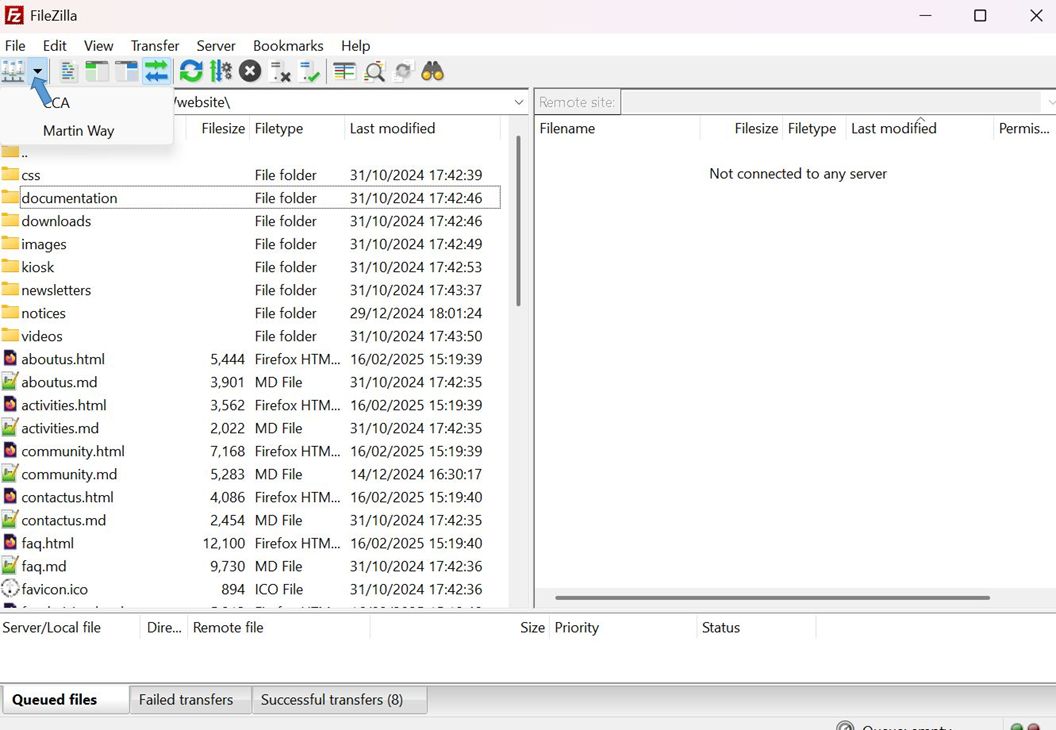
Select the site to open the local site (on the left) and remote site (on the right).
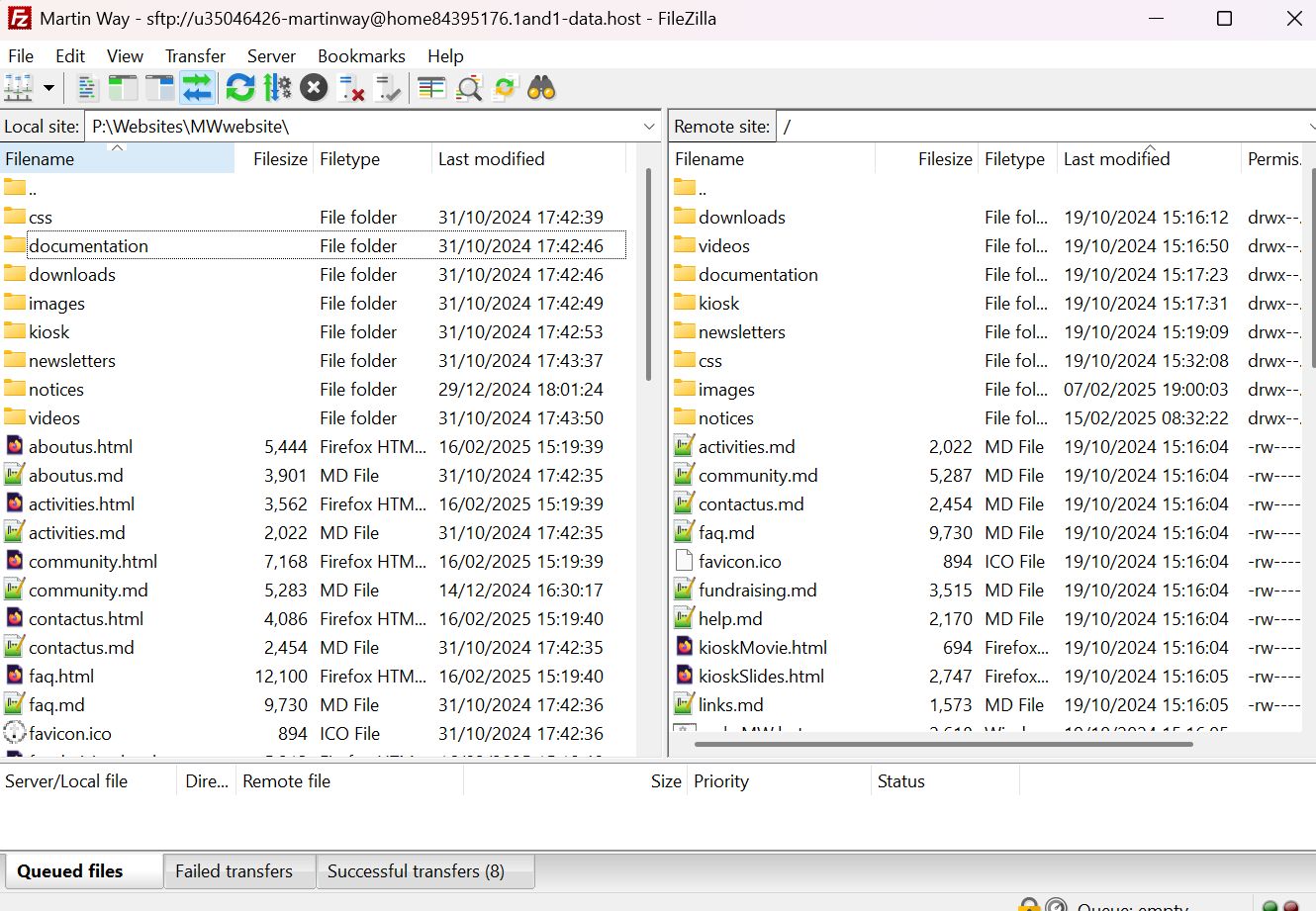
Select the files on the left to be uploaded, right-click on those files and and select “Upload”
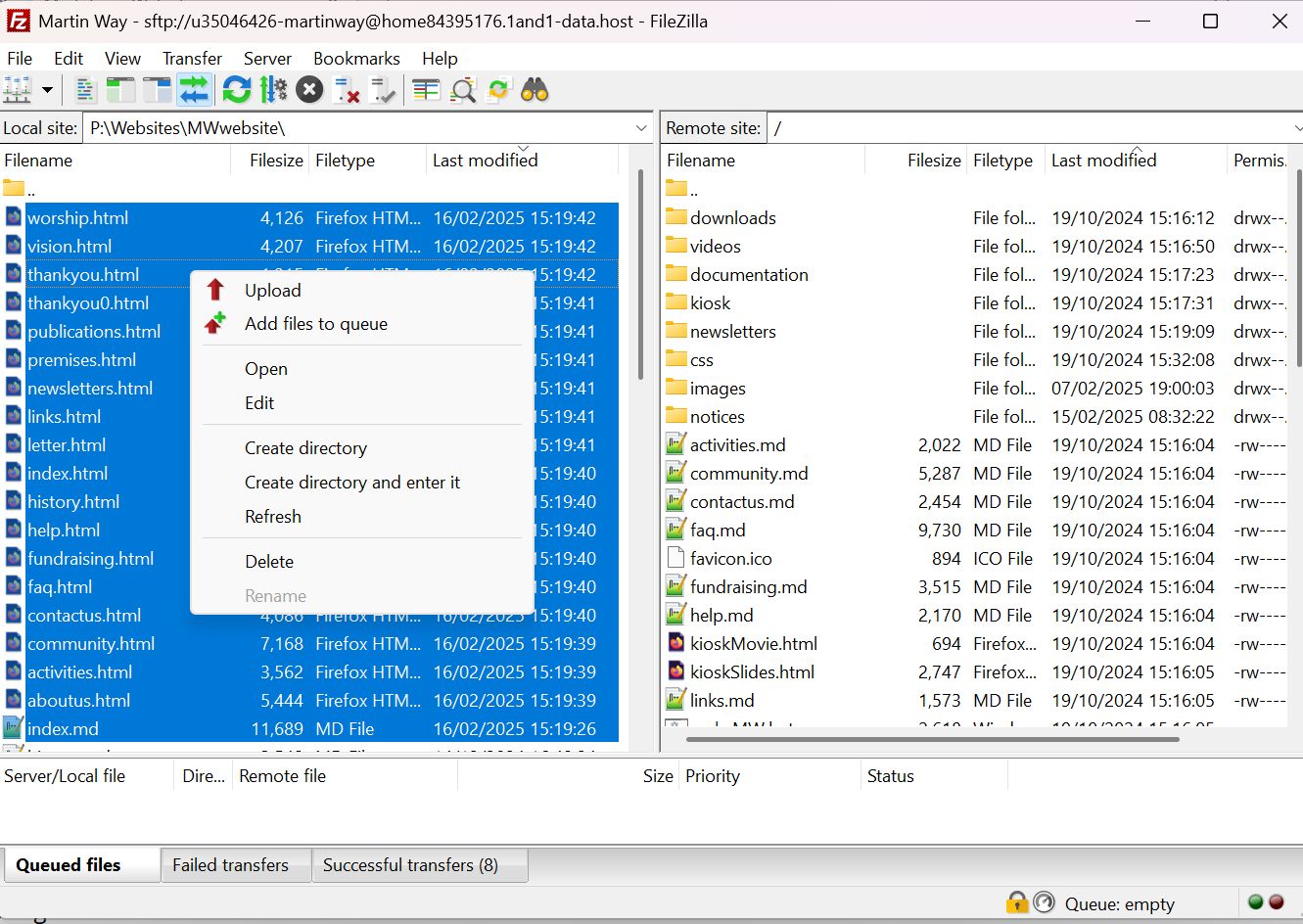
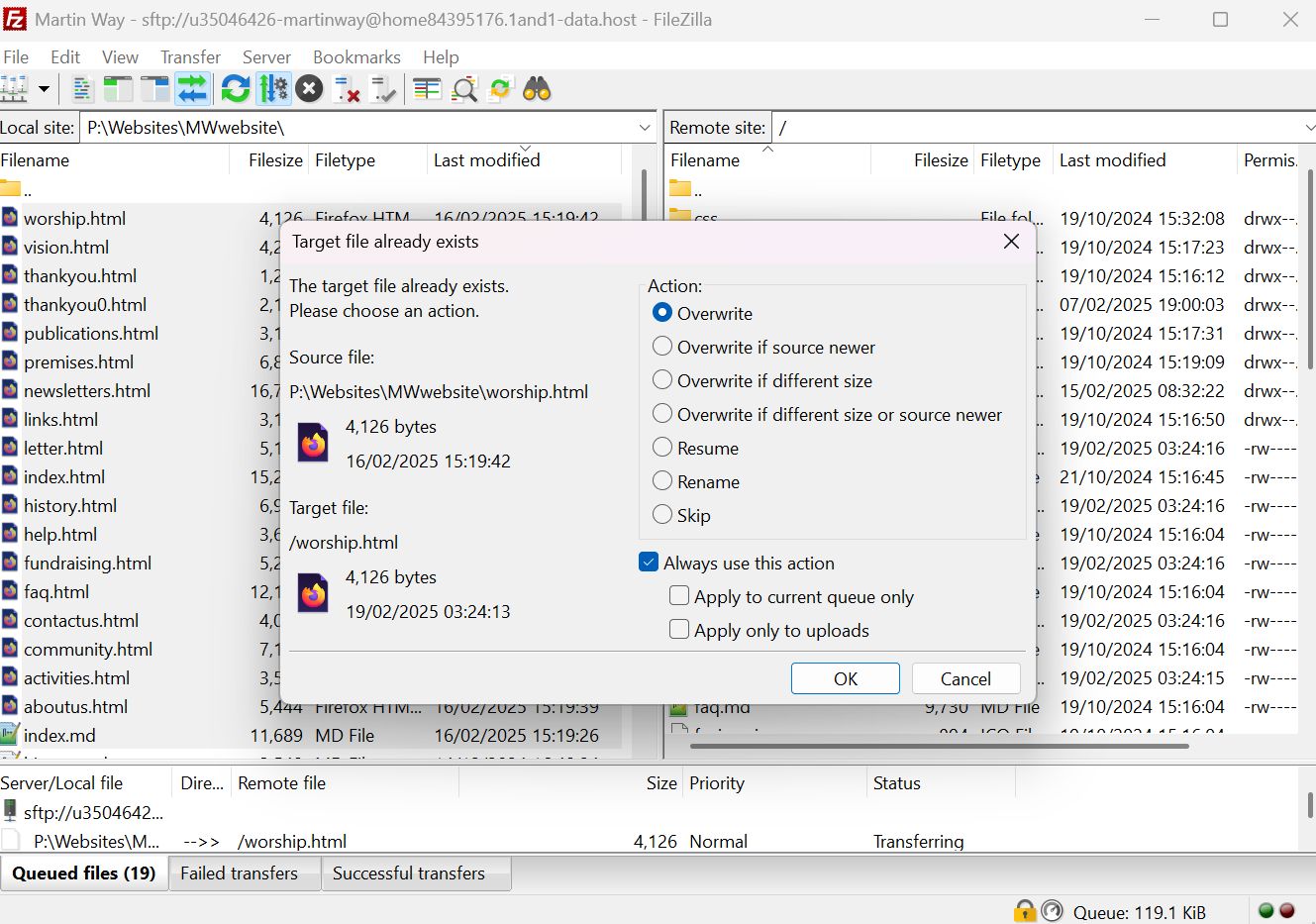
If you are replacing older versions of the files a pop-up box will be displayed with Overwrite ticked under Action. If more than one then tick “Always use this action” and all the files will be uploaded.
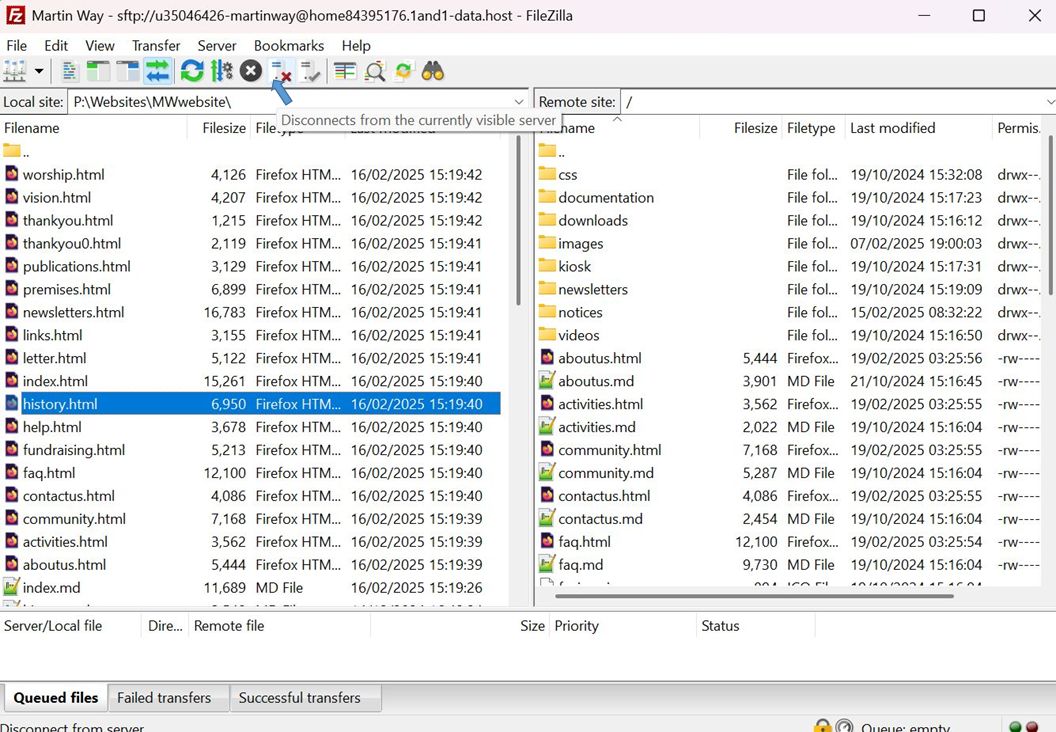
When you have completed the Uploads, click on the “Disconnect” button and close the program.
To download files for editing, select the files on the right-hand side, right-Click and select click on the right-hand filename and select Download
Note that I upload both the HTML files, for the Internet, and the MD files for backup. ’’’
Website design and management is better carried out on a PC or laptop for which excellent tools are available for this process.
The skills listed below should be regarded as a minimum:
Web Browsers such as Chrome, Safari, Edge, Firefox or Opera
Searching the Internet
Windows Operating system
Installation of programs and apps
Disk drive storage and drive letters e.g. C: drive
File explorer
Folders (also called Directories)
Word Processing
Text editing
Photo editing – crop, resize, re-colour, etc.
I would be glad to provide further explanation or tuition, if needed, in any of these areas.
| Format Type | Markdown Syntax |
|---|---|
| H1 to H6 | # Heading Text |
| Headings | ## Heading Text |
### Heading Text |
|
#### Heading Text |
|
##### Heading Text |
|
###### Heading Text |
|
| Italics | *This text will be italicized* |
| Bold | **This text will be bold** |
| Blockquote | > Blockquote paragraphs must have |
> a right-arrow bracket at the start |
|
> of every single line. |
|
> |
|
> including a blank line for multiple paragraphs. |
|
| Unordered List | - Bullet list item |
- Bullet list item |
|
- Use a four-space indent for nested lists |
|
| Ordered List | 1. Ordered list item |
2. Ordered list item |
|
1. Ordered lists can also be nested |
|
| Mixed List | 1. Can you mix list types? |
- Yes, you can! |
|
| Horizontal Line | --- |
*** |
|
___ |
|
**Note:** Three hyphens, asterisks, or underscores |
|
| Hyperlink | This is an [example link]([www.makeuseof.com](http://www.makeuseof.com)) |
| Image | !\[Alt Text]([http://www.martinway.org.uk/images/logo-150.jpg](http://www.martinway.org.uk/images/logo-150.jpg)) |
| Ignore Markdown | Prefix Markdown with \\\*backslashes\\\* to ignore formatting. |
| Code (Inline) | `This is inline code` |
| Code (Block) | ``` |
| This is a block of code | |
| It supports multiple lines | |
| ``` | |
| Strikethrough | ~~This text is crossed out~~ |
| Hard Line Break | This is some text |
This text is a new line, not a new paragraph |
|
| Table | | First Header | Second Header | |
| ------------------| ---------------------| |
|
| Content cell 1 | Content cell 2 | |
|
| Content column 1 | Content column 2 | |
|
| Task Lists | [x] Completed task item |
[ ] Unfinished task item |
|
[ ] (Optional) Mark parentheses to be ignored |
|
| Mention | You can mention @users and @teams on GitHub. |
| Mainly useful when submitting or commenting on bugs and issues | |
| Highlight | ==text to highlight== |
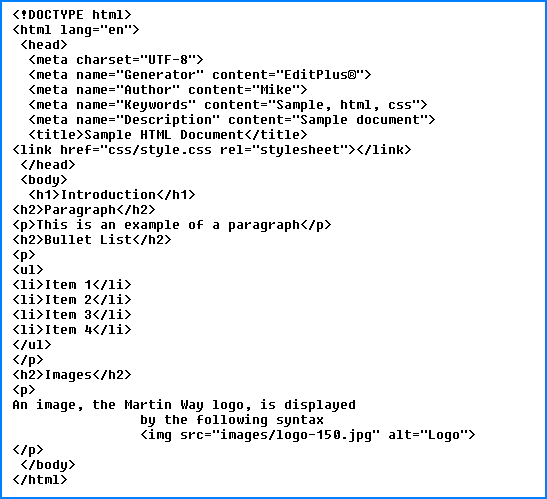
The MWwebsite folder below is the root folder containing the html and md files that define the project; css, downloads, images, newsletter and videos are sub folders “below” the root and they contain the ancillary files for the project.
The website files that we deal with have extensions of
.md - containing the Markdown text, describing the content of the web page
.html - the Internet ready version of the web page
.css - describing the format of the text within the web page
.jpg or .png - image files of pictures to be displayed on the web page
.doc/.docx - word processed files usually for downloading
.pdf - documents in Adobe format again for downloading
When naming files and directories meaningful ones are best, ones that are appropriate to the content of a file but avoid using spaces in file names.
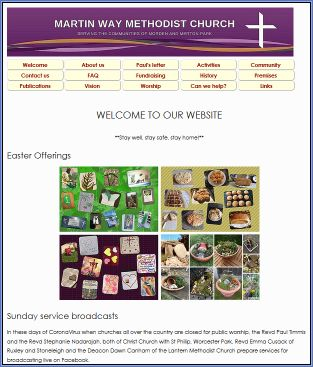
Markdown is not as flexible as HTML and CSS but the three can be intermixed to improve the look of the output. For example, I’ve taken the first part of the “raw-text” of an earlier version of the MW index.md file:
<link href="css/style.css" rel="stylesheet"></link>
<img src="images/MWbanner.jpg" style="float:left; padding-left: 0px;" />
<button>[Welcome](index.html)</button> <button>[About us](aboutus.html)</button>
<button>[Paul's letter](letter.html)</button> <button>[Activities](activities.html)</button> <button>[Community](community.html) </button> <button>[Contact us](contactus.html)</button> <button>[FAQ](faq.html)</button> <button>[Fundraising](fundraising.html)</button>
<button>[History](history.html)</button> <button>[Premises](premises.html) </button>
<button>[Publications](publications.html)</button> <button>[Vision](vision.html) </button> <button>[Worship](worship.html)</button> <button>[Can we help?](help.html)</button>
<button>[Links](links.html)</button>
## Welcome to our website
<p align="center"**Stay well, stay safe, stay home!**</p>
### Easter Offerings

### Sunday service broadcasts
In these days of CoronaVirus when churches all over the country are closed for public worship, the Revd Paul Timmis and the Revd Stephanie Nadarajah, both of Christ Church with St Philip, Worcester Park, Revd Emma Cusack of Ruxley and Stoneleigh and the Deacon Dawn Canham of the Lantern Methodist Church prepare services for broadcasting live on Facebook.Line 1 is an HTML command telling the browser to apply the CSS from a Style Sheet file, style.css, located in the css subdirectory. This, or a similar line, is included as the first line in each our the website pages and enables the same styles to be applied to all pages (see Appendix 4? for more on Style Sheets and Appendix 7 for those used in this project.). In this case the style.css file includes enhancements to the way the buttons below are displayed (px = pixels):
button {
background-color: lightyellow;
width: 169px;
border-radius: 8px;
text-align: center;
}
Line 2 is an HTML command telling the browser to place (float) the image on the left of the page whilst adding zero spacing (padding) to the left of the image banner.jpg located in the image subdirectory. This overrides the CSS defined in line 1.
Line 3 contains Markdown links to other web pages e.g. Welcome, with each link being wrapped in an HTML envelope.
Line 4 is pure Markdown with two leading “#’s” indicating a level 2 heading
Line 5 Wraps a piece of emboldened Markdown text in an HTML centralised paragraph
Line 6 and Line 8 are Markdown with three “#’s” indicating level 3 headings
Line 7 is a Markdown statement to display the easter_collage image file from the images subdirectory.
Line 9 starting “In these days of Coronavirus…” is pure Markdown text.
Three stylesheets are used depending on where within a web page images are to appear - style.css - images are centred
style-left.css - images are floated left with text wrapping.
Used in
style-right.css - images are floated right with text wrapping.
Used in
Each MD file has as its first line an HTML statement defining which style sheet in the css subdirectory is being used e.g.
There are common elements to all three stylesheets, namely
Defines the shape, width, size and background colour of the buttons as follows:
button {
background-color: lightyellow;
width: 169px;
border-radius: 8px;
text-align: center;
font-weight: bold;
}
Defines the padding i.e. spacing around an image and responsively shrinks images for the smaller screen.
/* Padding is top > right > bottom > left */
img {
padding: 0px 15px 0px 15px;
max-width: 100%;
height: auto;
}
Defines the background colour of a piece of highlighted text
mark {
background-color: lightyellow;
}
The style-left and style-right css files replace (2) above with an additional line to float the image left or right (left is shown)
/* Padding is top > right > bottom > left */
img {
padding: 0px 15px 0px 15px;
max-width: 100%;
height: auto;
float: left;
}
A HTML/CSS mixed statement for correctly aligning the mwbanner.jpg file in the images subdirectory by overriding the css above. This is the second HTML line in each MD file